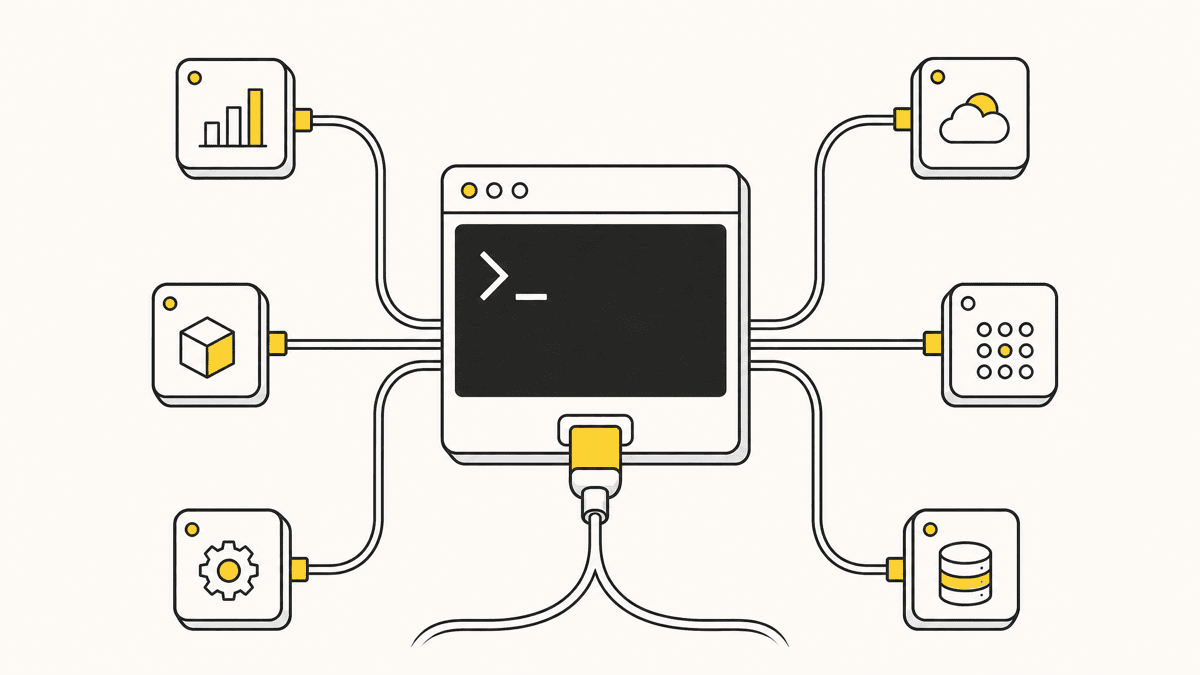
Cursor reads MCP server configuration from a mcp.json file, and getting it right the first time saves you the most common failure mode in this setup: a server that's configured but silently not actually connected. This is the current, mid-2026 walkthrough, config file location, scope, the three transport types Cursor supports, the tool-count ceiling worth knowing about before you add a fifth server, and a short list of what's actually worth wiring up.
Where mcp.json lives
Cursor supports two config locations, and which one you use changes who gets the server:
- Project scope:
.cursor/mcp.jsonin your repo root. Only applies to that project. This is the right choice for anything project-specific, a database connection string, a feedback queue tied to one client's site, and it can be checked into version control so anyone who clones the repo gets the server available without individual setup. - Global scope:
~/.cursor/mcp.jsonin your home directory. Applies across every project you open in Cursor. This is the right home for tools you want available regardless of which repo you're in, GitHub access, a browser-control server, anything you'd otherwise have to reconfigure per project.
If a server is defined in both files, the project-level config wins, which matters if you're debugging why a server behaves differently than expected in one repo versus another.

The config format, and the three transport types
Both files use the same mcpServers object, one key per server. Cursor supports three transport types, and knowing which one a given server uses saves a lot of confusion:
- stdio — a local process Cursor spawns (typically
npxplus a package name). Used by most local tools: a database server, a filesystem server, Playwright. - Streamable HTTP — a remote server reached over HTTP, often with OAuth. This is the modern remote transport and what most hosted MCP servers now use.
- SSE (Server-Sent Events) — an older remote transport still supported for servers that haven't migrated to Streamable HTTP.
A remote HTTP server with OAuth is the simplest to configure, just a URL:
{
  "mcpServers": {
    "shotline": {
      "url": "https://getshotline.com/api/mcp"
    }
  }
}
Cursor opens a browser sign-in the first time the agent calls one of that server's tools, and every call after that is authorized. For a local, stdio-based server instead, the entry takes a command and args pair (typically npx plus the package name) and an optional env block for secrets, keep those referencing environment variables rather than a hard-coded key in a file that might end up committed to a shared repo. After saving the file, restart Cursor (or reload the MCP connection from Cursor's settings) and check the MCP panel to confirm the server shows as connected before assuming it's live.
The 40-tool ceiling
Here's a detail that catches people out once they've added a handful of servers: Cursor has a practical ceiling of roughly 40 active tools across every connected MCP server combined. Cross it and Cursor doesn't fail loudly, it warns, and the agent silently loses access to some tools, which is a confusing thing to debug if you don't know the limit exists. There's a second, quieter cost too: every tool definition consumes context tokens on every request, and once 40-plus tool descriptions are competing in the same prompt, the model's ability to reliably pick the right one degrades, even before you hit the hard ceiling. A browser-control server alone can contribute 40-plus tools by itself (Playwright MCP is a notable example, covered in Playwright MCP with Claude Code), so it adds up faster than expected. It's worth periodically checking which servers and tools you actually use in a given project and disabling the rest rather than leaving everything connected by default.

Debugging a server that won't connect
The fastest way to isolate a broken server is to copy the exact command from your mcp.json and run it directly in a terminal:
npx -y @modelcontextprotocol/server-postgres postgresql://localhost/mydb
If that fails outside Cursor, the problem isn't Cursor's MCP integration, it's the underlying command, a missing dependency, a bad connection string, or an environment variable that's empty or missing entirely. This single step rules out the majority of "why won't my server connect" cases before you spend time debugging Cursor's config parsing itself.
A shortlist of the other things worth checking, in order, before assuming the config itself is wrong:
- Node or Python isn't on the PATH the terminal Cursor spawned actually sees. This is especially common on macOS if you installed Node through a GUI installer rather than a version manager, Cursor's spawned shell doesn't always inherit the same PATH your regular terminal does.
- The package version pinned in the config no longer exists, if you're using
npxwith a specific version tag, an unpublished or yanked version fails silently rather than falling back to latest. - A referenced environment variable is set in your shell profile but Cursor was launched before that profile loaded. Restarting Cursor after editing
.zshrcor.bashrcresolves more "missing env var" issues than people expect.
A shortlist worth adding
You don't need every server that shows up in an MCP marketplace, and given the 40-tool ceiling above, you actively shouldn't add every server you can. A reasonable starting stack for most web projects run through Cursor:
- GitHub MCP, for repo operations, opening PRs, and checking CI without leaving the editor.
- A browser-control server (Playwright MCP is the common default), for the agent to navigate and verify its own scripted checks against a real page.
- Shotline, for the review pass browser automation structurally can't cover, a pin a client or teammate left on the live page, complete with the selector, viewport, and console context at that moment.
That combination covers repo operations, automated self-verification, and human-noticed feedback, three different jobs that don't overlap. If you're comparing Cursor's setup against how the same servers get configured in Claude Code, the mechanics differ (mcp.json here versus claude mcp add and .mcp.json there) but the underlying servers and the reasoning behind which ones to add are the same, covered from the Claude Code side in how to add MCP servers to Claude Code, with a fuller stack in the best MCP servers for Claude Code.
Setting this up once for a whole team
If you're rolling this out for more than yourself, commit .cursor/mcp.json to the repo for anything project-specific (a shared feedback queue, a staging database) and document the global-scope servers each person should add individually in your onboarding notes, since global config isn't something you can hand someone through version control. This split, project config checked in, global config documented as a setup step, is the difference between "everyone reconfigures MCP from scratch on a new machine" and "clone the repo, run through a five-minute checklist, done."
Cursor vs. Claude Code for this specific setup
The config mechanics are genuinely the main difference. Cursor edits a JSON file directly (project or global) and shows connection status in a settings panel; Claude Code adds servers through a CLI command and a matching .mcp.json. Neither approach is meaningfully faster once you've done it twice, and both support the same underlying MCP servers, so the choice of which agent to run this stack through comes down to the broader editor-versus-terminal preference covered in Claude Code vs Cursor, not to any difference in MCP capability itself.
Cursor's own MCP settings panel changes shape periodically as the product ships updates, if a setting mentioned here has moved by the time you read this, check Cursor's current docs for the exact panel location; the mcp.json format, scope behavior, and transport types described above have been stable through mid-2026.
Verifying a selector before you trust it
Once a server hands your agent a CSS selector, whether it came from a database query result or a pinned piece of feedback, it's worth a quick sanity check before trusting an automated edit against it. The CSS selector tester runs a real match against pasted HTML in your browser, useful for confirming a selector is scoped tightly enough that Cursor's agent edits the one element you mean and not three others sharing a class.
Shotline connects to Cursor the same way any server does, drop the config into .cursor/mcp.json or the global file, and it's live: 21 tools, free on every plan. Connect Shotline to Cursor and hand your agent the review pass a database or browser-control server alone doesn't cover. Free for 14 days, no card required, then from $19/mo (billed annually; $25 month-to-month) with unlimited client guests.