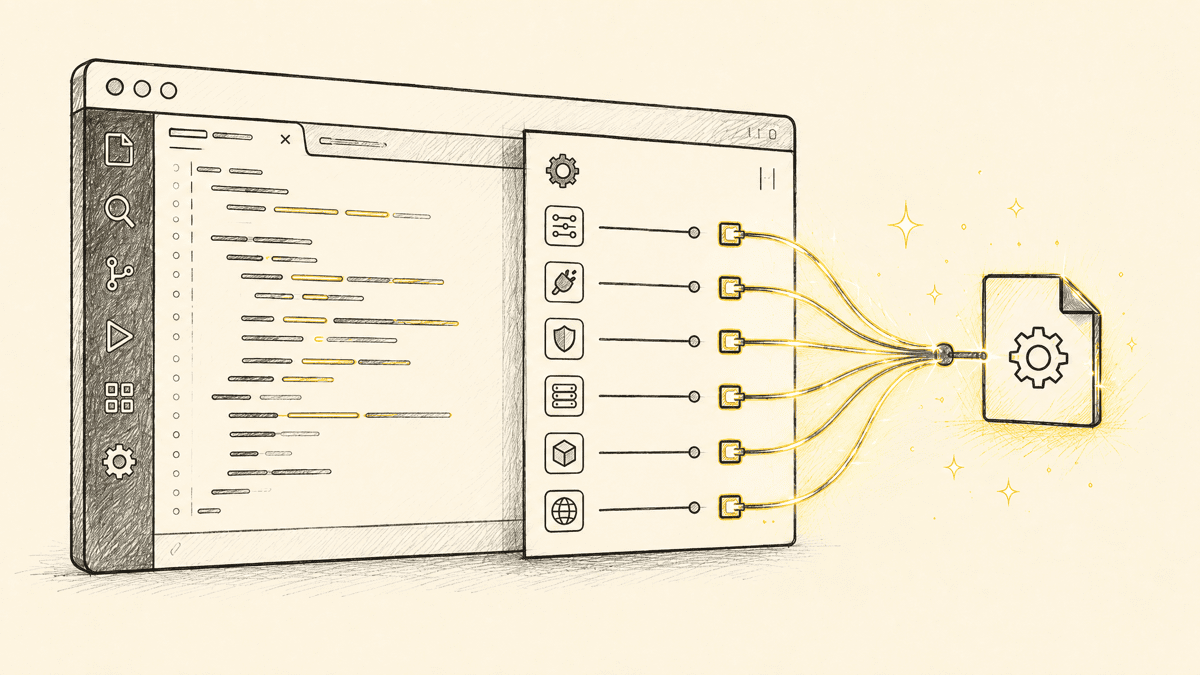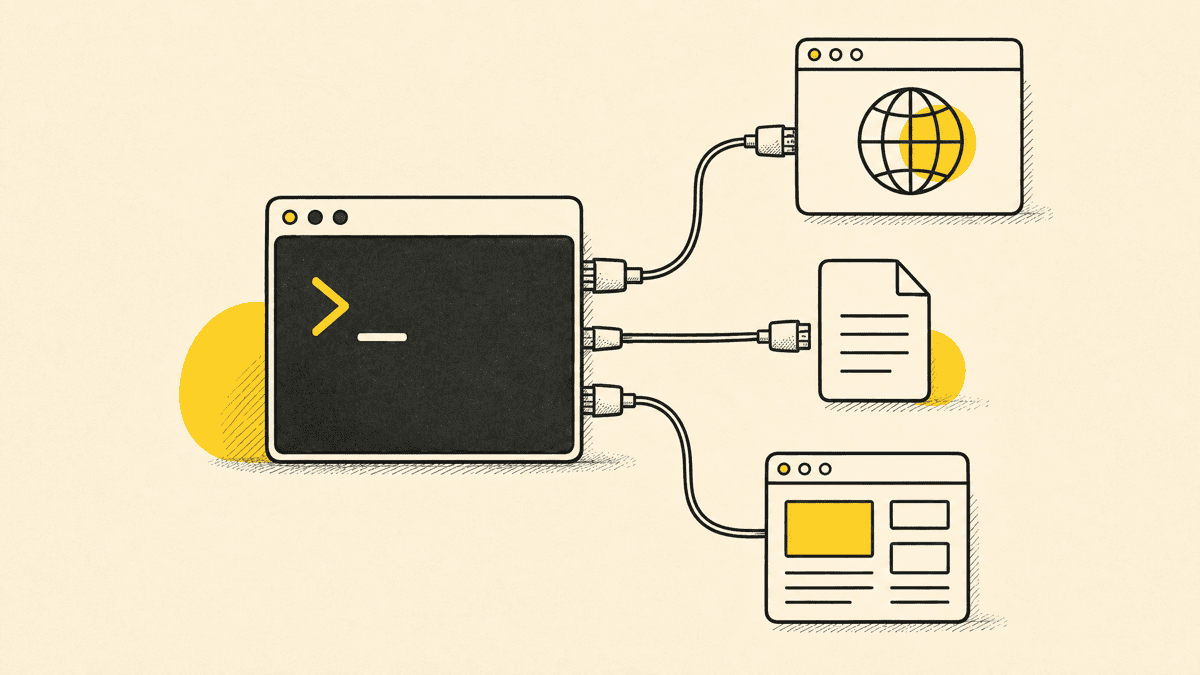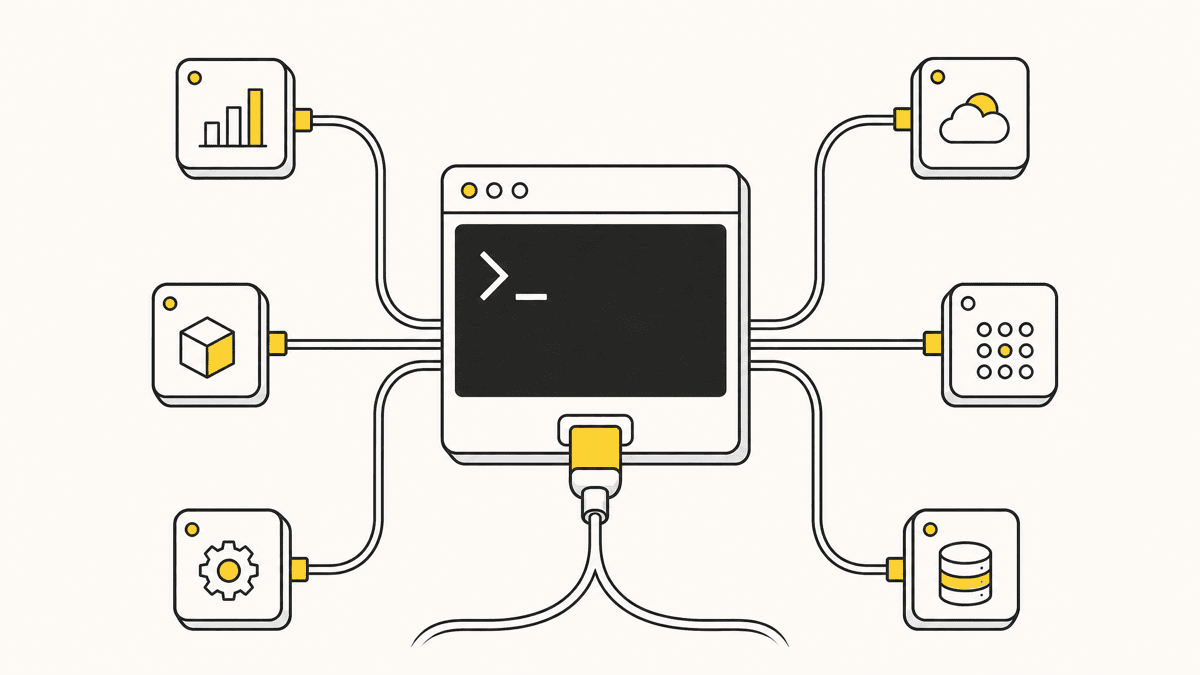
MCP (Model Context Protocol) is how Claude Code talks to tools outside its own file-reading and command-running loop: a database, a browser, a design system, a feedback queue. Adding an MCP server takes one command in most cases, but the details, scopes, transport types, auth, are where people get stuck. This is the step-by-step, with a working example you can run end to end.
What an MCP server actually gives Claude Code
Without MCP, Claude Code can read your files and run commands in your project, and that's it. An MCP server extends that reach: it exposes a defined set of tools (functions Claude Code can call, with typed inputs and outputs) that let the agent interact with something outside your local filesystem. A database MCP server might expose query() and list_tables(). A browser MCP server might expose navigate() and click(). Once a server is added, Claude Code can call its tools in the same session where it's editing code, no copy-pasting context between tabs.
Adding a server: the fast path
The simplest case is an HTTP-based MCP server with a public URL. From your project directory:
claude mcp add --transport http <name> <url>
For example, adding Shotline's MCP server (a visual-feedback queue we'll use as the worked example below):
claude mcp add --transport http shotline https://getshotline.com/api/mcp
That's the whole command for a server that supports OAuth. The first time Claude Code calls one of the server's tools, it opens a browser window, you sign in, and the session is authorized from then on. No token to generate or paste.
For a server that requires a bearer token instead of OAuth, pass it as a header:
claude mcp add --transport http <name> <url> \
  --header "Authorization: Bearer <token>"
This pattern covers most hosted MCP servers you'll add. Local, stdio-based servers (the kind that run as a subprocess rather than over HTTP) use a slightly different invocation, typically claude mcp add <name> -- <command> <args>, but the config that results is the same shape under the hood.
Three transports (and one you should avoid)
MCP servers talk to Claude Code over one of three transports, and knowing which you're dealing with saves a lot of confusion:
- stdio — Claude Code spawns the server as a local subprocess and talks to it over standard input/output. This is the default when you use the
-- <command>form, and it's what most local servers (a filesystem tool, a database wrapper you run yourself) use. Everything (--after the name) is the command Claude Code runs. - HTTP (streamable HTTP) — the modern transport for remote servers, added with
--transport http <url>. It supports OAuth natively, which is why hosted servers increasingly ship this way: no token to paste, just a browser sign-in on first use. - SSE (Server-Sent Events) — the original remote transport, added with
--transport sse <url>. It still works, but it's deprecated in favor of streamable HTTP. If a server offers both, use the HTTP endpoint; only reach for--transport ssewhen a server hasn't shipped an HTTP one yet.
The rule of thumb: stdio for anything running on your own machine, http for anything hosted, and treat sse as a legacy fallback you'd rather not standardize on.
Where the config actually lives: scopes
Claude Code writes MCP server configuration into a .mcp.json file, and where that file lives depends on the scope you add the server at:
- Local scope (default): stored in your user-level config, active only for you, in that one project. Good for personal servers or ones with credentials you don't want to share.
- Project scope: stored in a
.mcp.jsonfile at the project root, checked into version control. Every teammate who pulls the repo gets the same server available automatically, which is the right choice for a server the whole team should have, like a shared feedback queue or an internal API. - User scope: stored in your global config, available across every project on your machine. Good for servers you use everywhere regardless of which repo you're in, like a general-purpose browser or search tool.
You choose the scope with a flag on the same add command:
claude mcp add --transport http --scope project shotline https://getshotline.com/api/mcp
If you're setting up a server for a team, project scope is almost always the right call, it turns "everyone configure this themselves" into "pull the repo and it's already there." Just be careful not to commit real bearer tokens into a project-scoped .mcp.json — use OAuth where the server supports it, or reference an environment variable instead of a literal secret. Claude Code expands ${VAR}-style environment variables inside .mcp.json, so a shared config can point at ${SHOTLINE_TOKEN} and each teammate supplies their own value locally rather than committing a secret to the repo.
One more detail that trips people up: precedence. When the same server name is defined at more than one scope, local wins over project, and project wins over user. Claude Code connects to it once, using the whole entry from the highest-precedence source — fields are not merged across scopes. So if a server behaves differently than the .mcp.json you're looking at suggests, check whether a local-scoped definition of the same name is quietly overriding it.
Verifying a server is actually live
Once added, confirm it's connected before you trust it in a session:
claude mcp list
This prints every configured server and its connection status. A server that's added but failing to connect (bad URL, expired token, network issue) shows up here rather than silently failing mid-session. If a server shows as disconnected, the most common causes are an expired or missing auth token, a typo in the URL, or, for local stdio servers, a command that isn't on your PATH.
You can also ask Claude Code directly, in a session, to list its available tools, which will include everything the connected server exposes. If the tools you expect aren't showing up, re-run claude mcp list first before troubleshooting further.
Common errors and what they actually mean
- "Server failed to connect" on an HTTP server almost always means either the URL is wrong or the server is down. Curl the URL directly to confirm it's reachable before assuming Claude Code is at fault.
- OAuth loop that never completes: usually a browser popup blocker or a stale session. Try removing and re-adding the server (
claude mcp remove <name>thenaddagain) to force a fresh auth flow. - Tools not appearing in a session that was already running: MCP servers are loaded at session start. Start a new session after adding or changing a server's config.
- A project-scoped server not showing up for a teammate: confirm
.mcp.jsonis actually committed and not gitignored, and that they've pulled the latest changes and started a fresh session.
A worked example: wiring up a feedback server
Here's the full loop end to end, using Shotline as the concrete example since it's built specifically to be driven by an agent.
# 1. Add the server (project scope, so your whole team gets it)
claude mcp add --transport http --scope project shotline \
  https://getshotline.com/api/mcp

# 2. Verify it's connected
claude mcp list
The first tool call in a session opens a browser login. Sign in, pick the project, and every subsequent call in that session is authorized. From here, in a Claude Code session, you can ask it to work the queue:
"Check Shotline for open feedback on this project and fix anything straightforward."
Claude Code calls get_workflow first to get the recommended loop, then list_feedback to see what's open. For each item, get_feedback returns the full context: the CSS selector, the viewport it was captured at, a screenshot, the comment thread, and (when captured) console errors and the component path. That's enough for the agent to locate the actual code without guessing which element a vague note is describing. It makes the fix, then post_fix_note posts a structured card back into the thread with the commit and deploy link, optionally recapturing a fresh before/after screenshot of the exact element as proof. The whole loop, 21 tools in total on the Shotline side, runs without you leaving the terminal.
This is the same pattern any well-designed MCP server follows: a small number of read tools to pull context, a set of action tools to do something, and enough structure in the response that the agent doesn't have to infer what you meant.

Where to find servers to add
You don't have to know a server's URL by heart. The official MCP Registry launched in preview on September 8, 2025 at registry.modelcontextprotocol.io and grew to roughly 2,000 server entries within months — it's the closest thing to a canonical index of what's out there, and it's open source so other catalogs build on top of it. Our own shortlist of the ones actually worth wiring in lives in the best MCP servers for Claude Code.
A word of caution before you add a server you found in a directory: a 2026 security review of roughly 7,000 public MCP servers found that 41% required no authentication at all and only 8.5% used OAuth, so vet a remote server the way you'd vet any dependency that gets to run in your environment. Prefer first-party servers, read what tools a server exposes before you connect it, and keep anything with real credentials at local scope rather than committing it.
Where to go from here
Once you're comfortable adding one server, the same claude mcp add pattern works for any MCP-compatible tool, database access, browser automation, project management. If you're deciding between Claude Code and another agent before you invest in wiring up a whole toolkit, see our Claude Code vs Cursor and Codex CLI vs Claude Code comparisons, and what is vibe coding covers where an agent's blind spots show up even with a full MCP toolkit connected. If a server ever hands your agent a selector you want to sanity-check by hand, the CSS selector tester runs the match in your browser with no setup.
If you want to try the worked example above yourself, connecting Claude Code to Shotline takes about two minutes and is free on every plan, no card required for the 14-day trial, then from $19/mo (billed annually; $25 month-to-month) with unlimited seats.